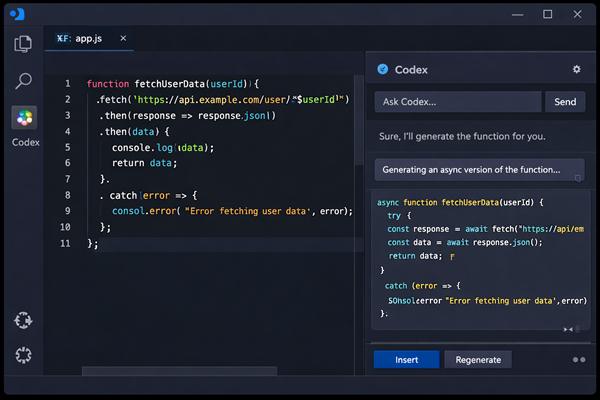
How to Use Codex in Visual Studio Code
Artificial intelligence is transforming software development, and one of the most powerful tools in this space is Codex. Integrated directly into Visual Studio Code, Codex helps developers write, debug, and optimize code using natural language instructions.
This guide explains how to set up and use Codex effectively inside VS Code.
What is Codex?
Codex is an AI-powered coding assistant developed by OpenAI. It can understand natural language prompts and convert them into functional code. It also helps with debugging, refactoring, testing, and documentation.
Codex works as an “agent” that can:
- Read your codebase
- Modify files
- Run commands and tests
- Suggest improvements automatically
Prerequisites
Before using Codex in VS Code, make sure you have:
- Installed Visual Studio Code
- A ChatGPT (Plus/Pro/Enterprise) or supported subscription
- Internet connection
- A project/workspace opened in VS Code
Install the Codex Extension
- Open VS Code
- Go to the Extensions Marketplace
- Search for Codex (or OpenAI Codex extension)
- Click Install
Codex is available as an official IDE extension compatible with VS Code and its forks .
Sign In and Authenticate
After installation:
- Open the Codex panel in VS Code
- Click Sign in
- Use your ChatGPT or connected account (sometimes via GitHub/Copilot login)
This links your Codex usage to your subscription and enables AI features.
Connect Codex to Your Project
Once logged in:
- Open a folder or project in VS Code
- Codex automatically scans your workspace
- It understands your code structure and dependencies
This allows Codex to generate context-aware suggestions instead of generic code.
Start Using Codex
You can interact with Codex in multiple ways:
1. Chat Interface
Ask questions like:
- “Create a REST API in Node.js”
- “Fix this error”
- “Explain this function”
2. Inline Code Suggestions
Codex can:
- Autocomplete code
- Suggest improvements
- Generate entire functions
3. Task-Based Commands
You can give high-level instructions such as:
- “Add authentication to this app”
- “Write unit tests for this file”
- Codex can even run commands and modify files automatically when approved .
Review and Apply Changes
Codex often works like a collaborator:
- It proposes changes
- You review them
- Accept, edit, or reject suggestions
- This ensures you stay in control of your code.
Use Advanced Features
Codex offers more powerful capabilities:
1. Automated Code Review
- Suggests improvements
- Detects bugs
- Enhances performance
2. Running Tasks in the Background
Codex can execute tasks in an isolated environment and return results for review .
3. Multi-step Problem Solving
- Breaks complex tasks into steps
- Implements solutions across multiple files
Best Practices for Using Codex
To get the best results:
- Write clear prompts
(e.g., “Create a Python function to sort a list using quicksort”) - Work step-by-step
Break large tasks into smaller ones - Review outputs carefully
AI-generated code may need validation - Use comments as prompts
Codex understands comments and generates code accordingly
Advantages of Using Codex in VS Code
- Faster development
- Reduced manual coding effort
- Better debugging support
- Seamless integration with your workflow
- Works directly inside your editor (no switching tools)
Limitations to Consider
- Requires internet access
- May generate incorrect or incomplete code
- Needs human review for production-level applications

Hi, this is Amrit Chandran. I'm a professional content writer. I have 3+ years of experience in content writing. I write content like Articles, Blogs, and Views (Opinion based content on political and controversial).